Home Blog Webflow animations with GSAP: visual tools and custom code
Technologies
Webflow animations with GSAP: visual tools and custom code
Webflow animations have changed substantially since GSAP became part of the platform’s native interaction system. Designers can now build timelines, staggered sequences, split-text effects, and scroll-controlled scenes inside the Webflow Designer. Many effects that once required a separate JavaScript file are available through an editable visual workflow.
That does not make every animation simple. The difficult work often sits outside the timeline: deciding what should move, connecting motion to content, keeping the layout stable, and making the result responsive. A polished scene may combine Webflow Interactions with GSAP, the CMS, CSS layout, and a small amount of custom code.
The most useful way to understand Webflow and GSAP is as a range of tools. A hover transition may need only CSS. A coordinated reveal can live in the native Interactions panel. A layout transition or physics-based effect may still need custom GSAP. Good implementation starts by choosing the lightest option that can express the intended behavior.
What motion should do
Motion is useful when it helps a visitor understand what changed. A button can confirm an action, a menu can reveal its structure, and a transition can preserve context as content moves between states. Motion can also control the order in which information appears, which is useful on dense landing pages and editorial layouts.
Brand expression matters too, although it needs restraint. The same timing and easing choices can make an interface feel direct, calm, playful, or precise. Repeating those choices across navigation, cards, and page transitions creates a recognizable motion style without making every section compete for attention.
The purpose should be clear before the timeline is built. If an effect delays access to content, hides an important control, or plays whenever the user passes the same section, it may create more friction than value. The animation should support the reading order and interaction state that already exist in the page.
What Webflow Interactions with GSAP offer today
Webflow Interactions with GSAP use a trigger, target, action, and timeline model. A trigger listens for an event such as page load, click, hover, mouse movement, or scroll. The action changes one or more targets, either immediately or over time. The visual timeline controls the order, overlap, duration, repetition, and easing of those actions.
The current system includes GSAP features such as ScrollTrigger, SplitText, staggered motion, advanced easing, and granular targeting. Actions can change transforms and styles, toggle classes, or control Lottie, Spline, Rive, and Webflow variables. Saved presets make a repeated entrance or transition easier to apply consistently.
Interactions can also be scoped to pages, breakpoints, components, and component variants. A component-scoped interaction travels with that component through Shared Libraries, while a page-scoped interaction can remain specific to one placement. This makes native Webflow animations more useful in design systems and larger sites.
Classic Interactions still cover a few Webflow-specific events that are not available in the GSAP system, including dedicated Navbar, Dropdown, Tabs, and Slider change events. Using both versions is possible, but each adds its own resources to the site. A new project usually benefits from treating GSAP Interactions as the default and adding Classic Interactions only for a confirmed gap.
How advanced Webflow scroll animations are structured
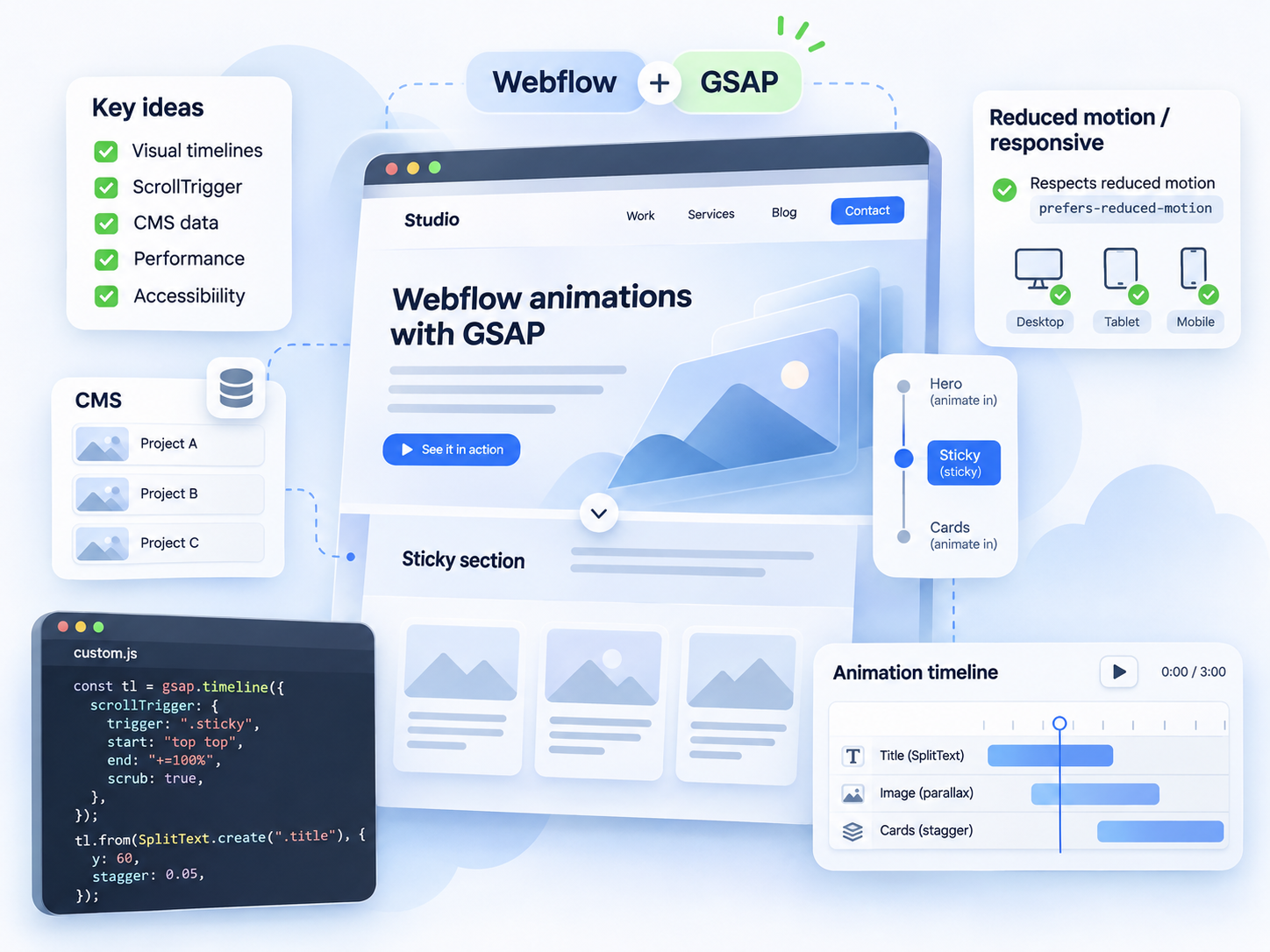
Complex Webflow scroll animations become easier to reason about when layout and motion have separate responsibilities. A tall section creates scroll distance. A sticky inner container holds the visible scene in place. ScrollTrigger maps progress through that section to a timeline, while transforms change the position, scale, rotation, or opacity of individual elements.
This separation matters because the browser already has efficient tools for layout. CSS position: sticky can hold a card stack or viewport-sized scene without creating JavaScript pinning logic. GSAP can then focus on the visual changes. In production projects, replacing several scripted pins with CSS sticky often reduces layout work and makes mobile behavior more predictable.
One scroll trigger can also coordinate several phases. A single progress value may drive the first text out, bring an image forward, and start the next label at different points in the same range. This avoids a collection of overlapping triggers that all measure the page independently.
Some scenes need a measured reference. Consider a headline that grows while one character stays visually anchored near the center of the screen. The script can measure the character’s offset during setup, save it, and use that value while the element scales. The browser does less measurement during scroll, and the motion keeps its intended pivot.
Small implementation choices matter in continuous animations. A scroll update runs many times, so direct property updates with gsap.set() are more suitable than creating a fresh tween on every update. DOM elements and dimensions can also be cached during setup and recalculated only after a meaningful layout change.
When Webflow CMS content becomes motion data
Webflow CMS animations can use collection fields for more than images and labels. A CMS item can also store order, coordinates, rotation values, or a variation that changes how the item enters a scene. Content editors can replace the material while the underlying animation system stays in place.
A scroll-driven 3D cube gallery shows how far this approach can go. Each CMS item supplies an image for one face of the cube. Numeric fields describe its transform origin, position, and rotation. Custom attributes connect the generated items to the correct steps in the GSAP timeline, and a small CSS layer preserves the three-dimensional arrangement.
The result looks technically elaborate, but its structure follows a repeatable pattern. One collection creates the full-screen backgrounds and text. Another collection creates the cube faces. The timeline repeats a group of actions for each transition: move the current text, reveal the next image, rotate the cube, and shift its position.
Attribute-based targeting is useful here because it separates styling from behavior. A class can continue to describe appearance, while an attribute identifies an animation role or CMS order. Changing a styling class is then less likely to disconnect the interaction.
Where the visual timeline ends
Native Interactions cover many common GSAP animations in Webflow, including scroll reveals, text sequences, cursor effects, and multi-step timelines. Custom code becomes useful when the effect depends on layout calculations, application state, advanced GSAP plugins, or coordination with another library.
Responsive layout transitions are a good example. GSAP Flip can record the position and size of a group of elements, move them into a different container, and animate the visual change between the two states. The page can use normal responsive layouts for the start and end positions instead of hardcoding every coordinate into one long timeline.
A more experimental site may add separate tools for specific jobs. Lottie can play prepared motion graphics, a physics engine can manage collisions or gravity, and a smooth-scroll library can change the feel of desktop navigation. GSAP coordinates these parts, while Webflow remains responsible for the page structure and editable content.
Extra libraries should enter the project with a defined purpose. Smooth scrolling, for example, may feel appropriate on desktop and cause problems in mobile browsers or embedded in-app browsers. A hybrid stack works best when each layer can be removed or simplified without breaking access to the content.
How to keep Webflow animations performant
Webflow animation performance depends on how much work happens on each frame. Transforms and opacity are usually safer properties to animate because they avoid repeated document layout. Width, height, and positional layout properties can be more expensive, especially when a scroll-controlled scene updates continuously.
The number of moving elements matters as much as the property choice. Split text may turn one heading into dozens of animated characters. A depth effect can touch every card in a stack at once. The scene should be tested with its real content, including long headings and the largest likely CMS collection.
Loops and continuous timelines should pause when their section leaves the viewport. Images need appropriate dimensions and compression. Scroll calculations should use cached references, and resize handling should refresh measurements deliberately rather than on every event. These choices are less visible than an easing curve, but they often determine whether the animation feels stable on an average phone.
Mobile may need a different composition rather than a smaller copy of the desktop animation. Shorter scroll distances, tighter depth ranges, fewer simultaneous elements, and simpler entrance effects can preserve the idea with less work. Webflow breakpoint conditions make these variations easier to manage inside native Interactions.
Performance testing belongs on the published site. The Designer preview cannot reproduce every browser, device, font-loading delay, or in-app browser. Testing should include fast and slow scrolling, resizing, browser navigation, content changes, and repeated entry into animated sections.
Making Webflow animations maintainable
An animation is maintainable when another person can identify its trigger, targets, and dependencies without replaying the original build process. Clear names, a small set of targeting attributes, and grouped timeline actions make the system easier to inspect. Reusable presets should cover common effects instead of creating a slightly different fade for every page.
Component-scoped interactions extend the same principle. A card, menu item, or call-to-action can carry its motion when reused across pages and sites. Variants can change the behavior where necessary, while a one-off component instance can receive a local interaction without altering every copy.
CMS-driven scenes also need editing rules. If an animation expects six cube faces, a specific item order, or a short label, those constraints should be documented next to the content model. Otherwise an ordinary content update can introduce an empty frame, unreadable text, or a transition with no matching target.
Hover animations need explicit state management when several timelines can start in quick succession. The open action should know whether the component is already open, and a reversing action should stop a previous unfinished timeline before it begins. Native interactions handle many common cases, while custom components may need this logic in code.
The goal is an editable motion system. Designers should be able to tune timing, developers should be able to trace complex behavior, and content teams should be able to update CMS entries within clear limits. Visual tools help with that handoff when the project uses them consistently.
Responsive and accessible Webflow animations
Responsive motion considers screen size, input method, reading order, and motion sensitivity. A mouse-driven effect needs a useful touch alternative. A desktop scene that depends on a wide composition may need a different layout on a narrow screen. Keyboard focus and controls must remain usable while elements move or change visibility.
Webflow can respect the user’s prefers-reduced-motion setting by replacing large movements, parallax, and looping effects with a short fade or a static final state. This keeps the content hierarchy and interaction outcome clear while reducing motion that may cause discomfort or make the page harder to follow. The reduced-motion version should be planned alongside the main animation so that text, controls, and state changes remain accessible.
Text should remain real HTML text when possible. Screen readers can then access the content even if SplitText creates visual fragments for animation. Decorative clones and temporary particle elements should stay out of the accessibility tree, while buttons, links, and dialogs keep their correct semantic roles.
Scroll-controlled effects also need restraint. Native scrolling preserves familiar browser behavior and gives users control over pace. Any smooth-scroll layer should maintain keyboard navigation, anchor links, and the ability to move through the page without waiting for an animation to finish.
Choosing between CSS, native Interactions, and custom GSAP
CSS transitions suit simple changes between known states.
Webflow Interactions with GSAP suit editable sequences that use page events, scrolling, reusable targets, and coordinated timing.
Custom GSAP suits motion that depends on geometry, complex state, advanced plugins, or another runtime system.
These options can share one site. The practical question is which layer can express an effect with the fewest dependencies and the clearest handoff. A native timeline is easier for a Webflow team to inspect. A short custom script may be clearer than forcing a specialized scene into dozens of visual actions.
The animation should communicate the intended state, remain responsive with real content, respect user preferences, and stay understandable to the team that will maintain it. When those conditions are met, Webflow and GSAP can support both small interface responses and coordinated editorial scenes.
FAQ:
Do Webflow animations affect SEO? They can if important content remains hidden until JavaScript runs, motion causes large layout shifts, or effects slow the page. Keep essential copy as real HTML, preserve semantic headings and links, and test the published page with its final media and animation settings.
Can Webflow CMS content control GSAP animation values? Yes. CMS fields can provide order, coordinates, rotation values, or other data used by attributes, CSS, and custom GSAP code. The content model should validate the expected values so an editor cannot accidentally break the scene.
What happens to a Webflow scroll animation when the page content changes? Longer text, different image dimensions, or extra CMS items can shift trigger positions and expose assumptions in the timeline. The scene should use stable layout rules, refresh measurements after meaningful changes, and be tested with the largest realistic content set.
Can Classic Interactions and GSAP Interactions run on the same Webflow site? They can, although both systems load their own resources. A project should use the GSAP system as its main interaction layer and add Classic Interactions only when a required Webflow-specific trigger is unavailable.
How does Bato Web Agency plan and test Webflow animations? We define the purpose and fallback state first, choose between CSS, native Interactions, and custom GSAP, then test the published result across breakpoints, input methods, browsers, and reduced-motion settings. Performance checks use realistic content and mobile devices.
It’s 2026. ChatGPT, Claude and Gemini have long been part of everyday life for plenty of people, not just businesses. Some ask AI to help untangle an error, some hand over their documentation, and others use it to write code. And the tools themselves no longer wait for us to copy code from a chat […]
Imagine a familiar scenario: you want to build a website, whether it is a landing page, a corporate site, or a large e-commerce platform. You hand the project to a team of experienced developers and designers. Everything seems to be going well, but time passes, deadlines loom, the release date approaches, and then someone on […]